

Ever snapped a photo on your iPhone only to find the background looks like a chaotic art project? Fear not! Blurring the background is the secret sauce that transforms an average shot into a stunning masterpiece. Whether you’re trying to highlight your adorable pet or showcase that delicious meal, a blurred background can elevate your images from ordinary to extraordinary.
Understanding Background Blurring
Background blurring enhances photos taken with an iPhone. This technique emphasizes the main subject by reducing distractions.
What Is Background Blurring?
Background blurring refers to the visual effect that softens the focus on the area behind a subject in a photo. By applying this effect, photographers create separation between the main subject and its surroundings. This artistic choice can enhance depth and draw observers’ attention to the subject itself. Various iPhone features, such as Portrait mode, enable users to achieve this effect effortlessly. Understanding how to manage aperture settings or software tools allows for greater control in achieving the desired blur.
Why Use Background Blur in Photos?
Using background blur in photos serves multiple purposes. It directs viewers’ attention to specific subjects, like a person or an object. This focus can elevate the quality of the image and make it feel more professional. Blurring distractions enhances the overall aesthetic, creating a more polished look. Additionally, background blur helps to convey emotions or narratives more effectively. It’s particularly useful in portrait photography to highlight facial expressions or features.
How to Blur Background on iPhone
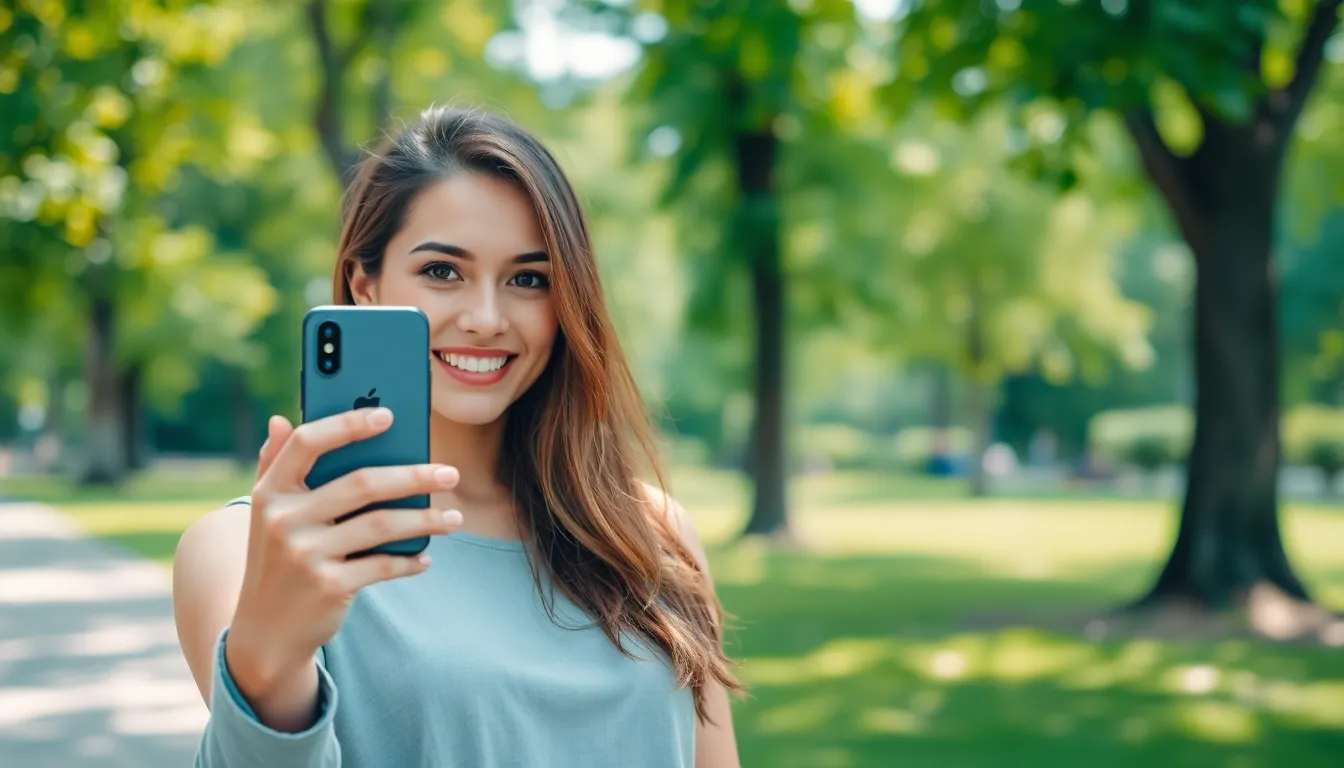
Blurring the background on an iPhone enhances the focus on the main subject. Several effective methods exist for achieving this effect.
Using Portrait Mode
Portrait Mode simplifies background blurring. Users can open the Camera app and select this mode to start snapping photos. The feature captures depth information, resulting in a natural blur behind the subject. Lighting adjustments and additional settings in Portrait Mode enhance the final image. It works best with well-defined subjects, like people or pets, ensuring a clear separation from the background.
Editing Photos in the Photos App
Editing photos directly in the Photos app offers further blurring options. After selecting a photo, users can click on “Edit” and then choose “Adjust.” The “Depth” slider lets them manipulate the level of blur behind the subject. Fine-tuning this setting allows users to achieve the desired effect without compromising image quality. Additionally, applying filters can enhance the overall look while maintaining focus on the primary subject.
Third-Party Apps for Background Blurring
Third-party apps offer additional options for blurring backgrounds in photos taken on an iPhone, providing versatile tools for users to enhance their images.
Popular Apps to Consider
Several apps specialize in background blurring. Snapseed allows precision editing with its ‘Lens Blur’ tool, creating realistic depth effects. AfterFocus offers features to differentiate between foreground and background, applying blur based on user-defined areas. PicsArt presents customizable blurring options, including various artistic effects. Blur Photo provides quick adjustments to background focus, making it user-friendly for beginners. These apps cater to diverse needs, from simple tweaks to elaborate edits.
Step-by-Step Guide for Each App
Using Snapseed, open a photo and navigate to the ‘Tools’ section. Select ‘Lens Blur’ and adjust the focus area while fine-tuning blur strength. For AfterFocus, import a photo, mark the foreground, and let the app process the background blur. PicsArt allows users to apply blur effects by selecting the photo editing option and choosing ‘Blur’. Simply adjust the intensity of the blur to fit the image. Lastly, Blur Photo streamlines the process by letting users specify the area to blur with a straightforward brush tool. Each app includes unique functionalities, enhancing creativity in photo editing.
Tips for Best Background Blurring Results
Achieving optimal background blurring involves several key techniques. Implementing the right strategies can significantly enhance image quality.
Lighting and Composition
Good lighting plays a crucial role in photo quality. Natural light creates soft, appealing tones while reducing harsh shadows. Position subjects in well-lit areas to maximize this effect. Avoid direct sunlight; it can create overly bright highlights. Composing the shot with the subject centered can help emphasize them against a blurred background. Use leading lines or frames within the scene to draw attention to the subject. Experimenting with different angles also helps find the most flattering perspective.
Choosing the Right Subject
Selecting a strong subject is essential for effective background blur. Well-defined subjects stand out when blurred backgrounds soften distractions. Portraits of people or pets typically work best; their features create engaging focal points. Objects with distinct shapes, like flowers or colorful items, can also be visually impactful. Ensure the subject contrasts with the background to enhance separation. Simplicity often yields the best results, so avoiding cluttered backgrounds increases effectiveness significantly.
Blurring the background in iPhone photos can significantly elevate the overall quality of images. By utilizing features like Portrait mode or editing tools in the Photos app, users can easily create stunning visuals that emphasize their subjects. Third-party apps provide even more customization options, allowing for precise adjustments and unique effects.
With a few simple techniques and tips on lighting and composition, achieving that professional look is within reach. Whether capturing a cherished moment with a pet or showcasing a beautifully plated dish, mastering background blur can transform ordinary photos into captivating works of art. Embrace these methods to enhance your photography skills and make every shot count.


