

Imagine lounging on your couch, ready to binge-watch your favorite series, but your iPhone screen feels like a postage stamp compared to your TV. If you’ve ever wondered if you can project your iPhone to your big screen, you’re not alone. Many have faced the dilemma of wanting to share photos or videos but were stuck squinting at a tiny display.
Understanding iPhone Screen Projection
Screen projection allows users to display content from an iPhone on larger screens like TVs. This feature enhances viewing experiences, making it easier to share videos, photos, and apps.
What Is Screen Projection?
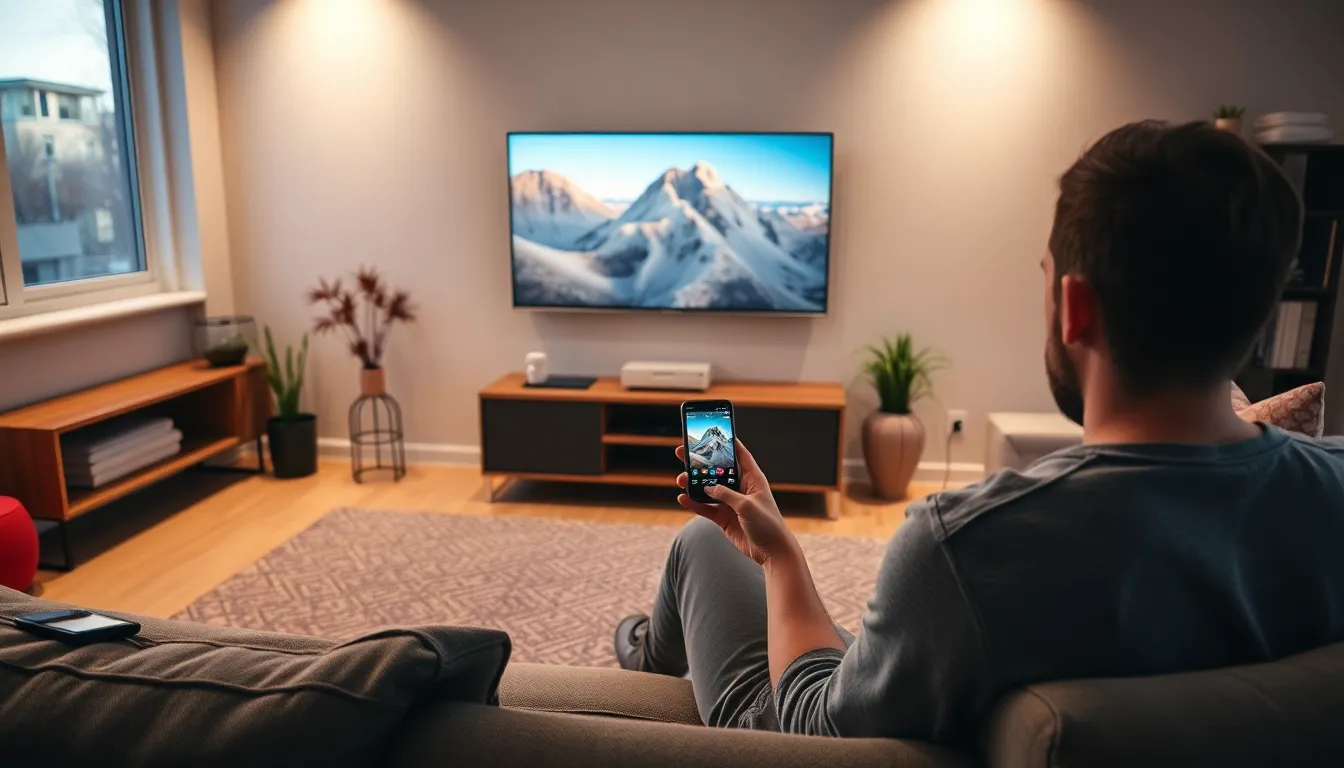
Screen projection refers to the process of wirelessly or wired transmitting an iPhone’s screen content to another display. AirPlay, Apple’s wireless streaming technology, makes this convenient for iPhones. By connecting an iPhone to an Apple TV or compatible smart TV, users can mirror their devices effortlessly. This connectivity creates a seamless experience where actions like scrolling through photos or streaming movies show on larger screens.
Benefits of Projecting Your iPhone to TV
Projecting an iPhone to a TV offers several advantages. Enhanced visuals on larger screens make watching movies and sharing images more enjoyable. This process simplifies group activities by allowing multiple viewers to watch together. Functionalities like gaming improve significantly, with larger visuals and more comfortable gameplay. Additionally, using the TV for presentations turns small documents into larger, impactful visuals. Overall, projecting an iPhone fosters a more engaging and social experience.
Ways to Project iPhone to TV
Projecting an iPhone to a TV enhances the viewing experience and provides various methods to connect devices. Here are some effective ways to achieve this.
Using Apple AirPlay
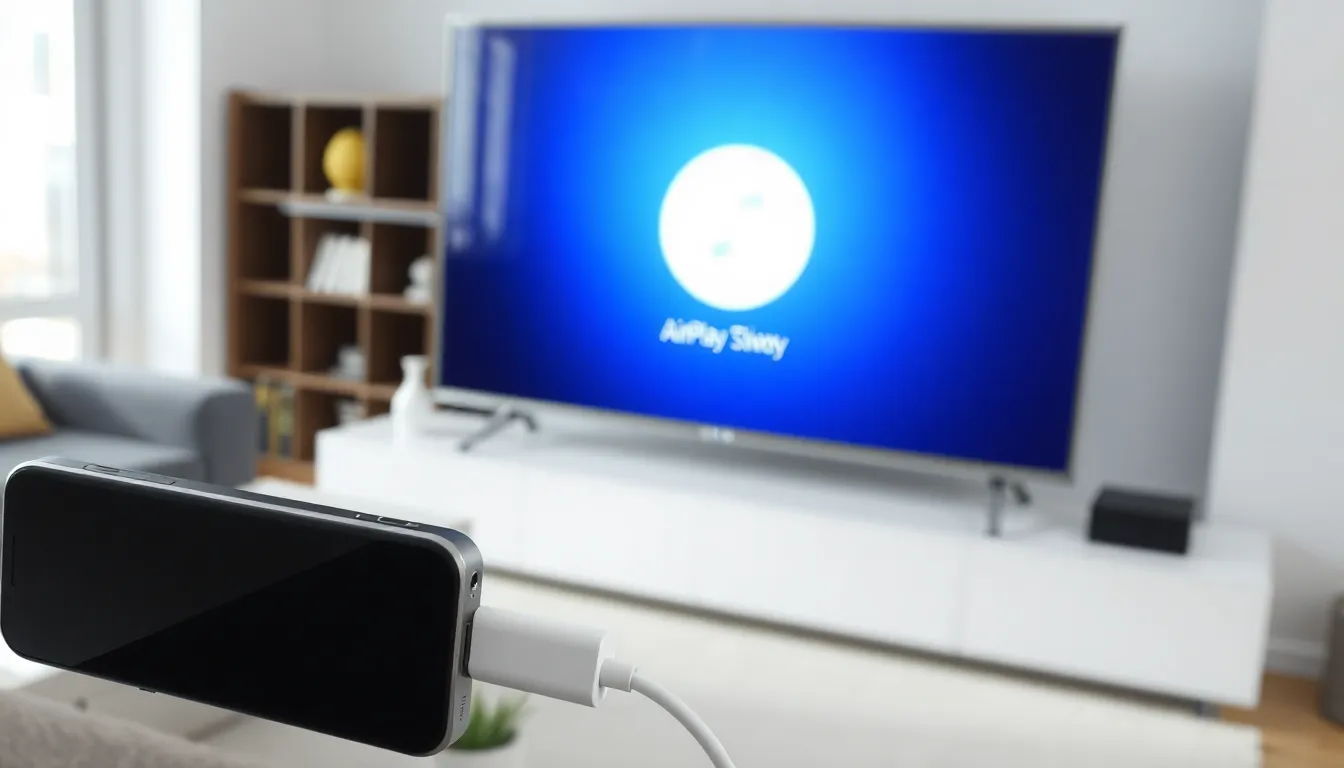
Apple AirPlay offers a seamless way to project content without additional hardware. Users can simply ensure their iPhone and TV are on the same Wi-Fi network. Accessing the Control Center on the iPhone enables users to select “Screen Mirroring.” Choosing the preferred Apple TV or AirPlay-compatible smart TV displays the iPhone’s screen almost instantly. This method supports high-quality streaming for videos, photos, and even presentations.
Using HDMI Cable
Connecting an iPhone to a TV with an HDMI cable provides a reliable option for projecting content. Users require a Lightning Digital AV Adapter along with a standard HDMI cable. Connecting one end of the HDMI cable to the TV, and the other to the adapter, creates a direct link. Plugging the adapter into the iPhone makes the TV display the iPhone screen immediately. This wired connection often results in reduced latency and enhanced video quality.
Utilizing Third-Party Apps
Third-party apps can expand options for projecting an iPhone to a TV. Numerous applications are available on the App Store that facilitate wireless screen sharing. Users can download compatible apps like ApowerMirror or LetsView. After installation, following the app’s setup instructions connects the iPhone to the TV. Many of these apps allow for flexible functionalities, including remote control features and additional streaming capabilities.
Common Issues and Troubleshooting
Projecting an iPhone to a TV can sometimes present challenges. Identifying common issues helps resolve these problems efficiently.
Connection Problems
Connection problems commonly arise when users attempt to link their iPhones to TVs. Wi-Fi connectivity plays a crucial role; both devices must connect to the same network. Restarting the router often resolves issues caused by fluctuating signals. Bluetooth connection may also cause problems, especially if not correctly configured. Users should ensure that AirPlay is enabled on the TV and that the iPhone recognizes the display. Forgetting the network and reconnecting can clear temporary glitches and restore connectivity.
Quality Issues
Quality issues can impact the viewing experience when projecting from an iPhone. Screen resolution may suffer if streaming video over a poor Wi-Fi connection. Users might notice lagging or buffering, which detracts from enjoyment. Resolving this involves testing the internet speed and transferring closer to the router. Additionally, adjusting the video output settings on the iPhone can enhance overall resolution. Utilizing an HDMI connection provides a more stable view, eliminating risks of pixelation and frame drops. Adjusting the TV settings for optimal resolution further improves visual quality.
Alternative Methods for Sharing Content
Several alternative methods exist for sharing content from an iPhone to a TV. These methods enable users to enjoy a larger screen experience, enhancing entertainment options.
Using Chromecast
Chromecast offers a straightforward solution to project an iPhone’s screen onto a TV. Users must install the Google Home app from the App Store. Once set up, they can connect the iPhone and Chromecast to the same Wi-Fi network. After launching the app, they select the cast function, find their Chromecast device, and choose the content to share. This method allows streaming videos, music, or mirroring apps. Chromecast also supports popular apps like Netflix and YouTube, enhancing the viewing experience.
Screen Mirroring with Smart TVs
Many smart TVs come equipped with built-in screen mirroring capabilities. These models often support technologies such as Miracast or DLNA. To use this feature, both the iPhone and the smart TV need to be connected to the same Wi-Fi network. Users access the Control Center on their iPhone, then tap on “Screen Mirroring” and select the TV from the device list. This connection allows users to display photos, videos, and presentations directly on the TV screen, providing an engaging group viewing experience.
Projecting an iPhone to a TV opens up a world of possibilities for enhanced viewing experiences. Whether it’s enjoying movies with friends or sharing photos during gatherings, the methods available make it easy to connect and enjoy content on a larger screen. With options like AirPlay and HDMI connections, users can choose the method that best fits their needs.
Troubleshooting common issues ensures a smooth connection and optimal viewing quality. By exploring various solutions including third-party apps and built-in smart TV features, iPhone users can effortlessly share their screens. Embracing these technologies not only enriches personal entertainment but also fosters a more engaging social atmosphere.


